
 ChatGPT
 Perplexity
 Claude
 Google AI Mode
 Grok
Quick answer — how do you rank a WooCommerce store?
Rank a WooCommerce store by giving Google one clean page per product and per category, with your own words, complete product data, valid Product schema, and no thousands of filter URLs in the way. WooCommerce gives you a workable base, not a finished job: the ranking comes from the configuration, the content and the speed you add on top.
WooCommerce vs Shopify for SEO — the honest answer
WooCommerce is a free WordPress plugin, not a standalone platform, so you own the whole stack: the highest ceiling and the widest surface for mistakes. Shopify is hosted: less to configure, less you can break, and less you can change. In July 2026 Chrome data, about 45.6% of WooCommerce sites passed all three Core Web Vitals on mobile, against 81.8% for Shopify — a gap driven mostly by loading speed, and the source was a Shopify migration agency. WooCommerce wins on control; Shopify wins on speed and simplicity. Neither ranks by itself.
Setup checks — before you write a word
Permalinks. In WooCommerce > Settings > Permalinks, pick a product URL pattern and keep it for years. The default /product/product-name/ works. Do not strip the /product/ base on a live shop — WooCommerce officially discourages it, and the gain is not worth the redirect risk.
HTTPS and a sitemap. Your whole shop must run on HTTPS. Your SEO plugin should generate an XML sitemap listing products, categories and posts, and submit it in Google Search Console. Check that cart, checkout and my-account pages are kept out of Google — WooCommerce does this by default, so check it is still true after a theme or plugin change.
Search Console and Merchant Center. Google reads products through Product structured data and through a Merchant Center feed — its documentation recommends both. The Shopping tab needs a Merchant Center account; Search merchant listings do not.
How do you optimise a product page?
Title and H1. Put the product type, brand, model and the attribute people search for in the title tag — "Nike Air Zoom Pegasus 41 — Men's Running Shoes", not "Pegasus 41".
Your own words. Write a short description of 60–120 words that says what the product is, who it fits, and what makes it different — in your own words, not the supplier's copy. Then add a specification table in HTML, not in an image or a PDF: size, material, weight, warranty, what is in the box.
Complete product data. Fill in price, currency, availability, SKU, brand and GTIN (the barcode number). Since WooCommerce 9.2 the Inventory tab has a GTIN field, and since 9.3 a valid GTIN goes into the structured data. A missing GTIN or brand is one of the commonest reasons a product fails to qualify for merchant listings.
Images and reviews. One clear main image, then two or three more showing the product in use, in WebP. The main image is usually the LCP element — do not lazy-load it. Real reviews feed the aggregate rating in the Product schema. Do not invent them.

What should a category page do?
Category pages are your main landing pages for the searches that matter most: "men's running shoes", "cotton bed sheets", "wireless headphones under $100". Name each category after what buyers actually search, give it one clear H1, and write a short introduction of 120–250 words above the product grid: what this category covers, who it is for, and how to choose. Without it, the page is a list of links with nothing for Google to quote.
Use attributes for filters, and categories for demand. Colour, size and material belong in attributes — a new category for every colour is how a small shop ends up with two hundred thin pages. Link from the category to your best products, and back.
How do filters and variations create duplicate content?
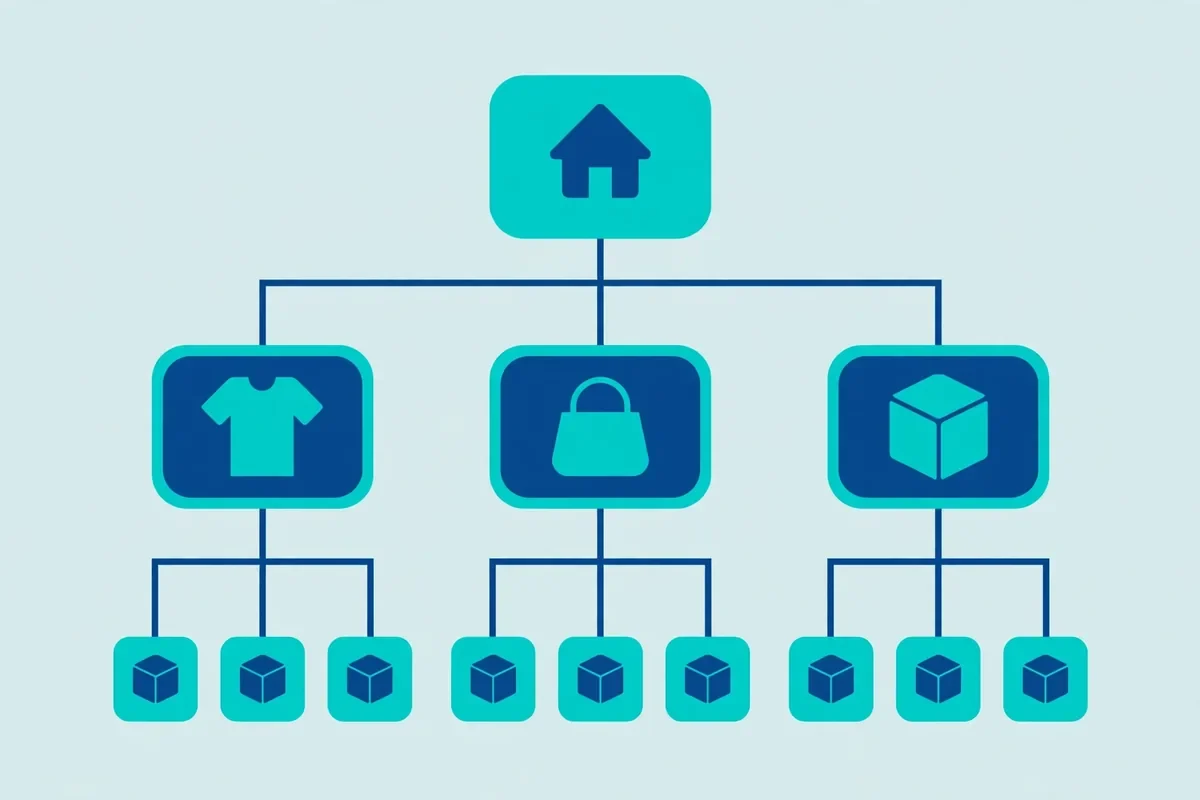
This is the biggest technical problem on most WooCommerce stores. When a shopper sorts by price, or filters by size and colour, WooCommerce adds parameters to the address, and every combination is a new URL showing mostly the same products. In 2025, nearly half of the crawl problems reported to Google's crawler team came from sites' filter navigation.
For filtered views you never want listed, a canonical tag to the plain category address is the common default — check it is present by viewing the page source. A noindex tag is better when a filtered view is something you never want listed at all. Blocking the parameters in robots.txt saves crawl time, but it also stops a crawler from seeing a canonical or noindex tag, so use it sparingly and do not combine all three on the same address without a reason.
Variations work the same way. A variable product — a shirt in three sizes and four colours — should live on one page. Duplicates appear when a link preselects a variation through a URL parameter, or when each colour is a separate product with near-identical descriptions. Keep one canonical address for the product group. Since WooCommerce 11.0, a fully specified variation address gets a single offer at that variation's exact price in the markup.
What does WooCommerce do for schema — and what is missing?
WooCommerce itself produces Product JSON-LD markup on every product page: name, description, main image, SKU, price, availability, reviews and average rating. In WooCommerce 11.1, the core markup contains no shipping costs, no return policy, no item condition and no variant group, so Search Console warnings about those fields are expected. A return policy and shipping details can be added through your SEO plugin — but only if they match what the page actually shows.
Pick one SEO plugin and stick with it: Yoast SEO with the paid WooCommerce add-on, or Rank Math. Either one handles product meta, sitemaps, canonicals and faceted-navigation settings. What neither one does is write your content, choose your categories, or fix your speed. Do not run two schema plugins at once — two Product blocks on one page is a common cause of rich-result errors. Check the result in Google's Rich Results Test.
Blog and content — does a store need it?
Yes, but only the kind that helps a buyer decide. A store with only product pages has nothing to rank for the questions buyers ask before they buy: "how to choose running shoes for flat feet", "cotton vs linen bed sheets". Write one guide per buying question, link it to the category and products it talks about, and keep it on the same domain — a separate blog on a subdomain splits the authority you are building.
How fast does a WooCommerce store need to be?
Fast enough that a shopper does not leave, and fast enough to pass Core Web Vitals: Largest Contentful Paint under 2.5 seconds, Interaction to Next Paint under 200 milliseconds, and Cumulative Layout Shift under 0.1. In 2026, about 43.9% of WooCommerce stores passed all three on mobile, against 55.9% of WordPress sites without a store.
The fixes that matter most: good hosting with PHP 8.3 or later and at least 256 MB of WordPress memory; full-page caching that correctly excludes cart and checkout; object caching such as Redis; images in WebP at the size they are shown, with dimensions set; and fewer plugins. In November 2026 data, WooCommerce stores running FlyingPress passed Core Web Vitals 61.9% of the time, ahead of WP Rocket at 53.6% — but those figures rank the sites that use each plugin, not the plugin in a lab. Test with PageSpeed Insights on a product page and a category page, not just the homepage.
How do you measure WooCommerce SEO?
Measure the sale, not just the ranking. A page can rank first and never sell, because its price is hidden, its stock is wrong, or its checkout is broken. Check Search Console weekly for impressions, clicks and schema or Core Web Vitals warnings, and fix the warnings on your best-selling pages first. In your analytics, look at revenue by landing page, not just sessions. Keep a fixed list of 20–30 buying queries and check them in Google on the same day each month. One search is a sample; a monthly list is a measurement.
Common mistakes to stop making
- Copying supplier descriptions. Ten stores with the same text, and Google has no reason to pick yours.
- Letting filters flood Google. Thousands of parameter URLs, no canonical, no noindex.
- Noindexing the wrong pages. Cart, checkout and my-account: yes. Categories and products: no.
- Two schema plugins. Two Product blocks on one page, and rich results fail on both.
- Changing URLs on a live shop. A new permalink base without 301 redirects is a ranking reset.
- Ignoring out-of-stock products. Keep the page live with a clear "out of stock" state and a link to the nearest alternative, not a 404.
- Judging SEO by the homepage. Shoppers land on products and categories. Test those pages.
Checklist: one store, in order
- Permalinks chosen and kept?
- Sitemap submitted?
- Cart, checkout and my-account out of Google?
- Product data complete? Price, stock, SKU, brand, GTIN.
- Schema tested? One Product block per page.
- Filters controlled?
- Categories written? Title, H1 and introduction on each one.
- Speed measured on real pages?
- Content linked to products?
- Measured monthly?
Frequently asked questions
Is WooCommerce good for SEO?
Yes, with configuration. WooCommerce gives you readable URLs, Product schema and full control over content and hosting. Out of the box it is valid but minimal.
Is WooCommerce better than Shopify for SEO?
Neither is better by itself. WooCommerce gives you more control and more to maintain; Shopify gives you speed and simplicity with less control.
Do I need an SEO plugin for WooCommerce?
Yes — one of them. Yoast SEO with the WooCommerce add-on, or Rank Math, handles product meta, sitemaps, canonicals and faceted navigation. Neither writes your content or fixes your speed.
Why are my WooCommerce products not showing in Google?
The common causes: the product is not indexed, the page is blocked or noindexed, the product data is incomplete, or the schema has errors. Check the URL in Search Console first.
How long does WooCommerce SEO take to work?
Technical fixes can make a page eligible within days to weeks. Rankings and sales build over weeks to months — judge it after 90 days, against your baseline.
What to do next
Fix the setup checks first, then work through your best-selling category and its products, one page at a time, with complete data and your own words. Measure for 90 days before judging it.
Every engagement starts with a free audit. Request one — it now includes a WooCommerce check: filters, product schema, category content, and Core Web Vitals.

Abu Hosain
Digital Marketing Strategist & White-Hat SEO Expert — 7+ years helping businesses worldwide grow with SEO, AEO and GEO.